 VoidTuber
Getting started
VoidTuber puts your VRChat or VNyan avatar on stream from Linux. It handles webcam tracking, lip sync, toggles, AudioLink, dances, props, redeems and collabs, and sends the picture straight into OBS.
VoidTuber is the app's new name.
1. Download and run it
- Download
VoidTuber.AppImagefrom the Download menu on the VoidTuber home page and keep it somewhere permanent, like your home folder. - Right-click it, open Properties and allow it to run as a program
(or run
chmod +x VoidTuber.AppImage). - Double-click it. The first time, it offers to add itself to your app menu.
You need a 64-bit Linux desktop with PipeWire, which most current distributions use. Everything else is inside the file.
2. Add your avatar
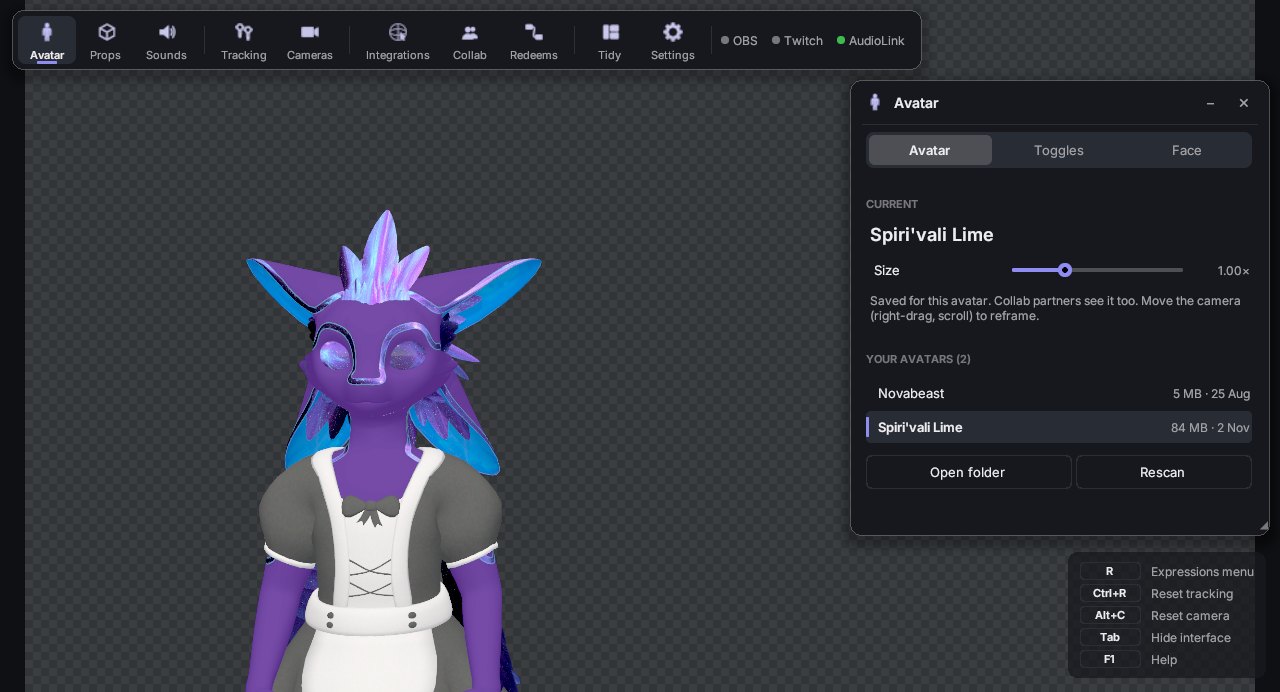
Open Avatar and press Add an avatar file…. The file is copied into
~/.local/share/vtube-linux/avatars; you can also put files there yourself
(Open folder).
- VNyan or VSeeFace avatar (
.vsfavatar): copy the file in as it is. - VRChat avatar: export it from its Unity project with the VoidTuber exporter. That makes a
.vtavfile. See Avatars.
Click the avatar in the Avatar window to load it.
3. Turn on tracking
Open Tracking and switch on Track me with the webcam. Look straight at the camera for a moment while it calibrates. Then go to Tracking ▸ Lip sync, pick your microphone and switch on Move the mouth when I talk.
4. Put it in OBS
In OBS, add a source: Sources ▸ + ▸ Video Capture Device (PipeWire) and pick VTuber Avatar, or whatever your camera is named in Cameras. OBS's Game Capture works too. The OBS dot at the right of the toolbar turns green once OBS is showing the avatar. More in OBS, cameras & webcam.
What's connected
The dots at the right of the toolbar show what's working: OBS, Twitch, VRChat and Other (the webcam, AudioLink and a collab, when you use them). Green means working, orange needs a look, red is a problem. Hover over them for details, or click to open Integrations.
When something goes wrong or connects, the app plays a short, quiet sound: one for errors, one for "needs a look", one for "connected". They don't go into the app's sound in OBS. Turn them off or quieter in Settings ▸ Interface sounds.
Moving around
| Do this | To |
|---|---|
| Right-drag on the preview | Orbit the camera around the avatar |
| Middle-drag | Move the camera sideways or up and down |
| Mouse wheel | Zoom |
| Alt+C | Reset the camera |
| Tab | Hide or show the interface (OBS never sees it either way) |
| R | Open the avatar's VRChat expressions menu |
| Ctrl+R | Reset tracking (look straight at the camera) |
| F1 | Open these help pages |
Shortcuts work while the app window is focused. For global shortcuts, see Stream Deck, hotkeys & scripts.
Updates
The app checks for new versions by itself and asks before installing one. You can also check in Settings ▸ About. Updates are signed, and the app refuses any file that doesn't match.
Settings and themes
Settings has the colour theme (or Make my own colours), the dance settings,
Start with my PC, the Discord status switch, Start with the interface
hidden, a frame-rate cap and shortcuts to your folders. VNyan themes in ~/vnyan/Themes show up there too.
A lower frame rate (30 or 60) leaves more of your graphics card for games.