 VoidTuber
Redeems & Twitch
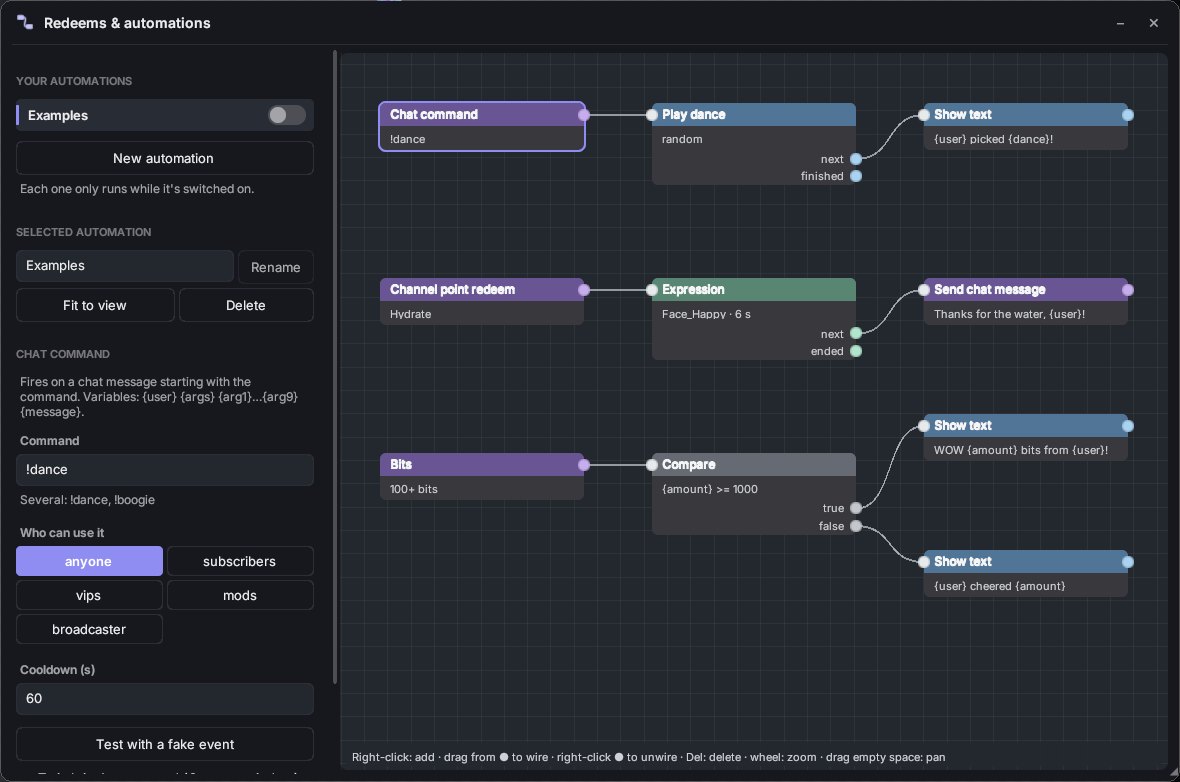
Redeems is where you make things happen on stream: a channel point redeem throws props, a chat command starts a dance, a raid shows a message. Each automation is a small diagram of when this happens → do that.
Connecting Twitch
- Open Integrations ▸ Twitch.
- Press Log in with Twitch. Your browser opens; enter the code the app shows and allow it.
- Switch on Connect when the app starts if you want it to connect by itself.
The app only asks Twitch for what redeems, chat, bits, follows, subs and raids need. Your login is kept on your computer. Log out removes it.
Making an automation
- New automation, and give it a name.
- Right-click the canvas and add a trigger, for example Twitch ▸ Channel point redeem. Click it and pick the reward on the left.
- Right-click again and add an action, for example Props ▸ Throw props.
- Drag from the trigger's dot to the action to wire them.
- Click the trigger and press Test with a fake event to try it without going live.
An automation only runs while its switch in the list is on. Right-click a dot to unwire it; Del deletes the selected block. Wheel zooms, dragging empty space pans.
Triggers
| Trigger | Fires when |
|---|---|
| Channel point redeem | Someone redeems a reward. {user} {reward} {input} {cost} |
| Chat command | A chat message starts with the command, like !dance. Can be limited to subscribers, VIPs or mods, with a cooldown. {user} {args} {arg1}… |
| Chat message | A message contains the text (empty = every message) |
| Bits | Someone cheers within the range you set. {amount} |
| Follow, Subscription, Raid | Someone follows, subscribes (or gifts), or raids. {viewers} for raids |
| Key press | You press a key while the app is focused |
| Called trigger | A Stream Deck, shortcut or script calls it (below), or a Call trigger block does |
| Timer | Every so often while the automation is on |
| App started, Avatar loaded | The app starts, or an avatar finishes loading |
| OBS scene changed | OBS switches scene (needs OBS connected) |
| Dance started, Dance finished | An MMD dance starts or ends |
Actions
| Group | Actions |
|---|---|
| Avatar | Expression (hold for some seconds) · Clear expressions · Avatar toggle (an item of the VRChat menu,
like Clothes/Hoodie) · Avatar parameter · Avatar size · Switch avatar · Webcam tracking on/off |
| Props | Throw props · Drop props · Headpat · Show / hide prop |
| Media | Play dance · Play sound · Show text (drawn into the picture, so OBS shows it) |
| Twitch | Send chat message |
| OBS | Switch OBS scene · Show / hide OBS source |
| Logic | Wait · Random · Compare · Cooldown · Every Nth time · Call trigger |
| Data | Set variable · Web request · Log |
Variables: write {user}, {reward}, {amount} and so on in any text and they are
filled in, for example Show text: {user} redeemed {reward}!. Each trigger's help (click it) lists its
variables. Set variable makes your own; global ones are remembered across restarts.
The Examples automation (switched off) shows a few complete setups to copy from.
Controlling OBS
To switch scenes or show and hide sources from an automation, open Integrations ▸ OBS and switch on Let redeems control OBS. In OBS turn on Tools ▸ WebSocket Server Settings ▸ Enable WebSocket server. The app reads the port and password from OBS's settings by itself.
Stream Deck, hotkeys & scripts
Switch on Integrations ▸ Stream Deck & scripts ▸ Allow local web requests. Then anything on this computer can run a Called trigger by name:
curl localhost:39580/trigger/my-trigger?user=Me- Global hotkey (works while you're in a game): in KDE, System Settings ▸ Keyboard ▸ Shortcuts ▸ Add New ▸ Command or Script,
with the
curlline above as the command. - Stream Deck (with StreamController or similar): a button that opens that URL or runs the command.
- Anything after
?becomes variables:?user=Meis{user}.
Only programs on your own computer can do this. Web pages can't, even ones open in your browser.