 VoidTuber
OBS, cameras & webcam
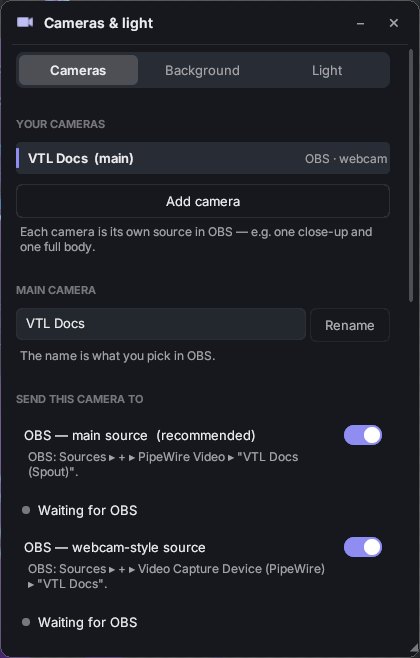
The app doesn't need screen capture. Each camera in the app sends its picture to OBS through PipeWire, with a transparent background, and the interface never shows up in it.
Adding the avatar to OBS
There are two ways to bring a camera into OBS. Both are transparent and both are on by default. Use whichever your OBS has:
- Webcam-style source (works in any OBS)
- OBS: Sources ▸ + ▸ Video Capture Device (PipeWire), then pick the camera's name (VTuber Avatar unless you renamed it).
- Main source (recommended if you have the PipeWire Video plugin)
- OBS: Sources ▸ + ▸ PipeWire Video, then pick VTuber Avatar (Spout). This is the same OBS source that Spout2PW senders appear in.
Integrations ▸ OBS shows, for every camera, which sources OBS is actually showing. The OBS dot at the right of the toolbar turns green when at least one is.
Game Capture
If you're used to capturing VNyan with Game Capture, that works here too:
- In OBS: Sources ▸ + ▸ Game Capture (Vulkan). Pick VoidTuber and tick Allow Transparency.
- In the app, press Tab to hide the interface. With the interface hidden, the window shows only the avatar on a transparent background, which is exactly what OBS captures.
Game Capture shows whatever is in the app window, so the interface shows up in OBS while it's visible.
The PipeWire sources above never show the interface. Game Capture needs the obs-vkcapture plugin, which
many distributions install with OBS; the AppImage turns on its side by itself.
More than one camera
Cameras ▸ Add camera makes another camera with its own source in OBS, for example one close-up and one full body. With two or more, small live previews appear at the bottom left of the app. Click one to show it big and move it with the mouse.
For each camera you can set its name (what OBS lists), its outputs, the picture size and the framing: zoom, distance, up/down and left/right. Full body during emotes zooms out while a VRChat emote or the avatar's own dance plays. Renaming a camera creates a new source name, so re-pick it in OBS afterwards.
The first camera is the main camera. Dance cameras and lyrics use it.
Virtual webcam (Discord, Zoom, browsers)
Switch on Virtual webcam for a camera, and it shows up as a normal webcam called VoidTuber in the Discord app, Zoom, browsers and other video-call apps.
- This needs the
v4l2loopbackdriver. If it isn't installed, the app shows Install virtual webcam support. That asks for your password, installs the driver and sets it up to come back after every restart. It works on Arch, Debian and Ubuntu and the distributions based on them. - If the driver is already there, Create a virtual webcam adds a device for it (also asks for your password).
- Webcams can't be transparent, so the background is filled with the colour you pick there, unless you picked a sky.
If it says the device is busy, another program is writing to the same virtual webcam. OBS's own virtual camera uses one too; pick a different device under Device, or leave it on Automatic.
Background and light
Cameras ▸ Background: Transparent (for OBS) or one of the skies. A sky can be turned, made brighter and also used to light the avatar.
Cameras ▸ Light: Key light is the main light (strength, direction and height). Fill light brightens the shadows.
App sound in OBS
All of the app's sound (dance music, songs the avatar plays, the soundboard and prop sounds) comes through PipeWire as one program called VoidTuber. In OBS add Sources ▸ + ▸ Application Audio Capture (PipeWire) and pick VoidTuber. Or simply capture your whole desktop audio.